
Bonrix CRM Hybrid Dialer App | Telecaller Setup Guide
Welcome to the official guide for the Bonrix CRM Hybrid Dialer App! Follow these simple steps to login, connect your Android dialer, manage leads, and maximize telecalling productivity with Bonrix CRM.
🎥 Watch: Complete step-by-step guide to setup and use Bonrix CRM Hybrid Dialer App for telecalling teams
🚀 Get Started with Bonrix CRM Hybrid Dialer App
Welcome to the official guide for the Bonrix CRM Hybrid Dialer App! Follow these simple steps to get started and make the most of the app's powerful features for telecalling, lead management, and customer engagement.
📋 Step-by-Step Instructions
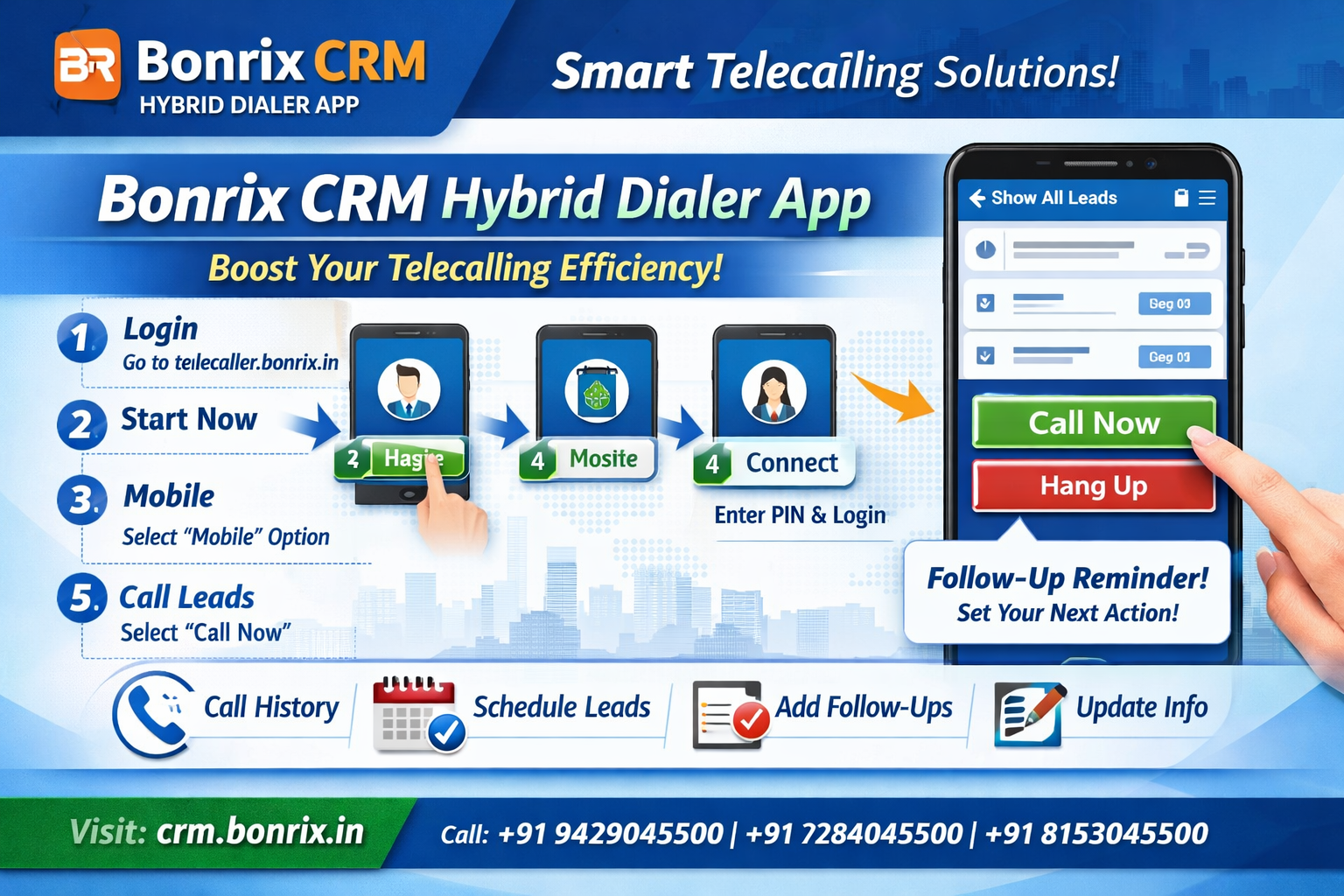
- 🔐 Login: Go to http://telecaller.bonrix.in/index.html and enter your credentials
- ▶️ Start Now: Click on the "Start Now" button to access the telecaller dashboard
- 📱 Mobile: Click on the "Mobile" option to connect your Android device
- 🔗 Connect: Click the "Connect" button, enter your Android login PIN as the telecaller ID, then click "Log In"
- 📞 Show All Leads:
- Click on "Show All Leads" to view your assigned lead list
- Select any lead and in the action field, click the drop-down list
- Select "Call Now" to initiate the call via your connected Android device
- After the call, click the "Hang" button to end the session
- 📝 Popup Message & Follow-Up:
- A popup message will appear for follow-up actions (Callback, Not Interested, Converted, etc.)
- Select the appropriate status and add notes if needed
- View all call details, lead history, and follow-ups on the Bonrix CRM telecaller site
✨ Additional Features to Explore
- 📜 View Call History: Access complete call logs with timestamps, duration, and outcome status
- 📅 Schedule Leads: Set callback reminders and schedule follow-ups for optimal timing
- ✏️ Change Lead Information: Update contact details, preferences, or notes in real-time
- 🔁 Add Follow-Ups: Create multi-step follow-up sequences with automated reminders
- 📊 Performance Analytics: Track calls made, conversions, and telecaller productivity metrics
- 👥 Team Management: Assign leads, monitor team performance, and generate consolidated reports
🎯 Perfect For Indian Telecalling Teams
📞 Telesales & Lead Generation:
Manage high-volume outbound campaigns with click-to-call, lead status tracking, and automated follow-ups.
🏦 Banking & Financial Services:
Handle loan inquiries, KYC verification, and product promotions with compliant call logging and audit trails.
🏥 Healthcare & Insurance:
Schedule appointments, follow up on claims, and manage patient/customer communications with secure data handling.
🎓 Education & Coaching:
Convert inquiries to admissions with structured lead nurturing, callback scheduling, and conversion tracking.
🛒 E-commerce & Retail:
Recover abandoned carts, confirm orders, and provide post-purchase support via integrated telecalling workflows.
⚙️ Technical Highlights
- 📱 Android Integration: Hybrid dialer connects seamlessly with Android phones for native call quality and reliability
- 🔐 PIN-Based Authentication: Secure telecaller ID login via Android PIN – no password management overhead
- ☁️ Cloud-Synced CRM: All call data, lead updates, and follow-ups sync in real-time to Bonrix CRM cloud
- 🌐 Web + Mobile Access: Manage leads from desktop dashboard; make calls via connected Android device
- 🇮🇳 India-Ready: Multi-language support (Hindi, Gujarati, English), TRAI-compliant call logging, GST-ready reporting
💡 Pro Tips for Telecaller Success
- ✅ Use Lead Filters: Sort leads by priority, last contact date, or conversion probability to focus efforts
- ✅ Leverage Follow-Up Templates: Save time with pre-written follow-up messages for common scenarios
- ✅ Track Call Outcomes: Always update lead status post-call – accurate data drives better team insights
- ✅ Schedule Smart: Set callbacks during customer-preferred hours to improve answer rates
- ✅ Review Analytics: Check daily/weekly performance reports to identify improvement areas
🔍 Troubleshooting Common Issues
- ❌ Android Not Connecting: Ensure mobile data/WiFi is active; verify PIN matches telecaller ID; restart app if needed
- ❌ Call Now Button Greyed Out: Confirm Android device is connected and has call permissions enabled
- ❌ Popup Not Appearing Post-Call: Check browser popup blocker settings; ensure CRM site is in allowed list
- ❌ Lead List Not Loading: Verify internet connectivity; refresh page; contact admin if issue persists
- ❌ Follow-Up Not Saving: Ensure all required fields are filled; check for network timeouts
Explore more features and maximize your telecalling productivity with Bonrix CRM!
🌐 Visit Our Websites
🔗 crm.bonrix.in – Main CRM Platform
🔗 telecaller.bonrix.in – Telecaller Portal
📞 Contact Bonrix Software Systems
📍 Ahmedabad, Gujarat (India)
📱 Call/WhatsApp: +91 94290 45500 | +91 72840 45500 | +91 81530 45500
📥 Request CRM Demo